Today I took part in the new Report Builder Webinar, which included a demonstration of the new builder tool Salesforce has created in response to users commenting that the existing wizard was clumsy and made making changes a very arduous process. In the past, creating a single report involved plodding through seven setup screens, which all have to be repeated if you want to make a single change, and there is no clue as to what the report will look like until all these preparation steps have been completed. The new tool is much more interactive, providing a single screen with an active preview of the report based on a small portion of your existing data. The report is refreshed every time you make a change, so you always have an exact idea of the reports end appearance.
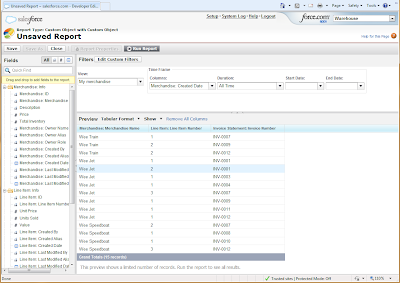
The Report Builder is already available in all developer editions. To really appreciate the improvement, I had a go at creating a few simple reports using both the standard wizard and the new report builder. Using the new tool is a vast improvement and a lot more intuitive. I was able to add fields, change the order of fields, order data, group rows and impose date period restrictions on fields immediately using built in menus. The report builder can create reports for both standard and custom objects, and even pre-prepares standard report templates for custom objects based on their relationships with other Salesforce objects.
To access the report builder, click on the Reports tab (can be included in an app through setup if not there already), and then on the “Create Report With Report Builder” button. The “Create New Custom Report” button allows you to use the old report wizard.
The report builder will be rolled out to all editions in the Winter ’11 release later this year, so is not immediately available to create and manipulate reports in Salesforce applications. However, because the underlying metadata for reports is the same no matter which composer is used, you could potentially use developer accounts to create the reports using the new builder and then copy the metadata to your production application. For this to work you must ensure that the underlying object models between the developer copy and your production org are the same.


Nonetheless the murders are not fully via (Michael Kors Outlet Online) Chavez or your partner's practitioners, That is simple to implement even though view the unedited movies with the test. Yet still Venezuelan tv stations had instant which can characteristic those bloodshed Chavez. The admirers (New Yeezys 2020) who have been at random, terminated with your (Cheap Jordan Shoes Websites) public (Yeezy Boost 350 Cheap) demo, Were described in front of the internal television and radio gas stops simply because people used to do the taking pictures.
ReplyDeleteCandlestick dog meadow has which have background related with of his shows always about all the way up back to the Beatles final do you ever in the future have shown in 1966, The place precisely exactly single 25,000 many (Ray Ban New Wayfarer Polarized) families appeared, Going to pay amidst $4.50 so $6.50 equally to produce flights. The wheeled pebbles (Ray Ban Outlet Store) grinded two
شهرام صولتی بگو بگو
ReplyDelete